Skip to Content

Overview

What is

SignOn /ˈsīn-ˌȯn/ noun
  1. The act of engaging oneself for work, membership, or duty.Merriam-Webster

  2. A GRIT Track SignOn kiosk identifies a user, sends the result to GRIT Hub Pro, and establishes the user’s configured shop session before controlled tools are unlocked.

Configured GRIT reader Customer-supplied reader

What every SignOn does

Every shop session starts with the right person.

Identify the user, complete the configured sign-on workflow, and let GRIT Hub Pro apply the result.

GRIT Track SignOn
Illustrated GRIT Track SignOn standard integrated-reader and third-party-reader configurations

Reader configurations

Choose how SignOn receives the identifier.

The kiosk workflow stays the same. The reader path changes to fit the cards and readers the establishment uses.

01 GRIT Track SignOn with its integrated reader GRIT Track SignOn The standard kiosk with a display and built-in connected RFiD reader. Variant · GA-GT2001 Reader · Built in and connected
Installed GRIT Track SignOn with its built-in connected RFiD reader

Compact spec

How it works.

The display guides the user through sign-on while the connected reader returns the identifier GRIT uses for the configured workflow.

Use this when
  • the establishment is selecting a supported GRIT reader path
  • GRIT temporary cards, tags, stickers, or configured credentials will be used
Product configuration
GA-GT2001
GRIT Track SignOn
Display
11-inch iPad Air
Reader
Built-in connected RFiD reader
Hub
GRIT Hub Pro required
Connectivity
GRIT Mesh to GRIT Hub Pro
02 GRIT Track SignOn third-party reader integration GRIT Track SignOn 3rd Party Reader BYOR — Bring Your Own Reader — is a custom integration for a compatible customer-supplied reader. Variant · GA-GT2002 Reader · Customer supplied
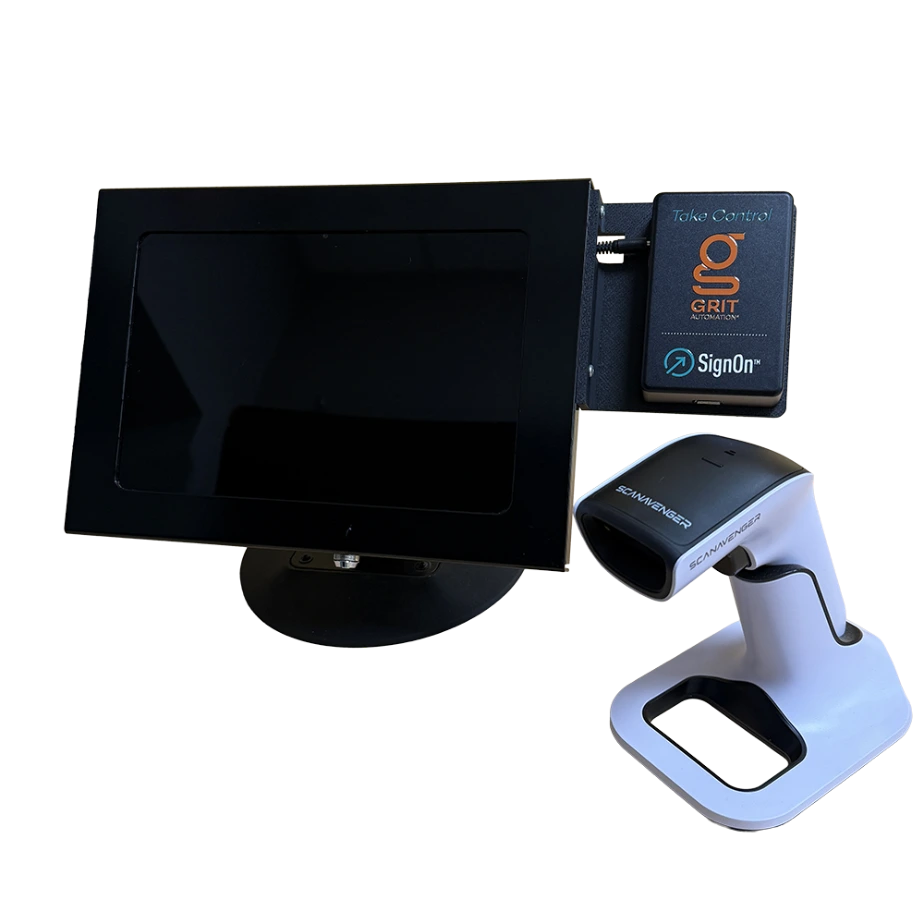
GRIT Track SignOn kiosk with a representative third-party reader

Compact spec

How it works.

The customer sends a representative third-party reader to GRIT. GRIT integrates the reader and creates a fitted enclosure so the finished assembly looks like one unit.

Use this when
  • the customer wants to keep a compatible existing reader workflow
  • the existing reader already returns the usable identifier SignOn needs
Product configuration
GA-GT2002
GRIT Track SignOn 3rd Party Reader
Reader
Compatible customer-supplied hardware
Integration
Custom reader workflow and fitted enclosure
Preferred interface
Wiegand where applicable
Hub
GRIT Hub Pro required

First-use workflow

Link the card to the right GRIT profile.

The available import data determines whether the card works immediately or is assigned at SignOn.

Starting point What the user does Result
Card identifier is supplied during import Present the card, tag, sticker, or configured credential. Physical ID Number already associates that identifier with the GRIT profile, so the card can resolve on first presentation.
No card UID, but a barcode or magnetic stripe value is available Use that value at SignOn to find the user, then follow the assignment prompt and present the new card, tag, or sticker. SignOn saves the new UID to the selected profile.
No card identifier or alternate scannable value If user search is enabled, search by name, select the correct profile, and follow the assignment prompt. The newly presented identifier is linked to that profile. Search availability is configurable.
Temporary card Present a temporary GRIT card when prompted. SignOn assigns the typical temporary MIFARE 1K card for shop use.
Mobile credential Include an email address and enable Send Mobile Card Email during Data Import. GRIT can email a mobile wallet card when the required mobile-wallet conditions are met. It supplements physical-card options; it does not replace them.
Installed GRIT Track SignOn displaying the sign-in screen
SignOn in use. The display guides the user while the connected reader supplies the identifier.

Current assignment prompt

Assign RFiD Card

The current interface continues with Click to Begin, then Tap a RFiD. These labels were verified in the GRIT Hub source.

Data Import

Four fields determine the identifier path.

Physical ID Number

Imports the UID or reader-provided identifier that should be associated with the user’s GRIT profile.

External System Id

Imports another establishment identifier GRIT can use to match the user when the selected reader workflow returns that value.

Prompt To Assign RFiD Tag

Controls whether SignOn prompts an identified user to assign a card, tag, or sticker.

Send Mobile Card Email

Emails a GRIT mobile wallet card to a newly imported user when Mobile Wallet is enabled and an email address is available. The mobile credential is an additional option, not a replacement for physical cards.

Usage scenarios

One sign-on point for schools and manufacturing floors.

Place SignOn where users begin the workflow: at a shop entrance, lobby, or other controlled sign-in point.

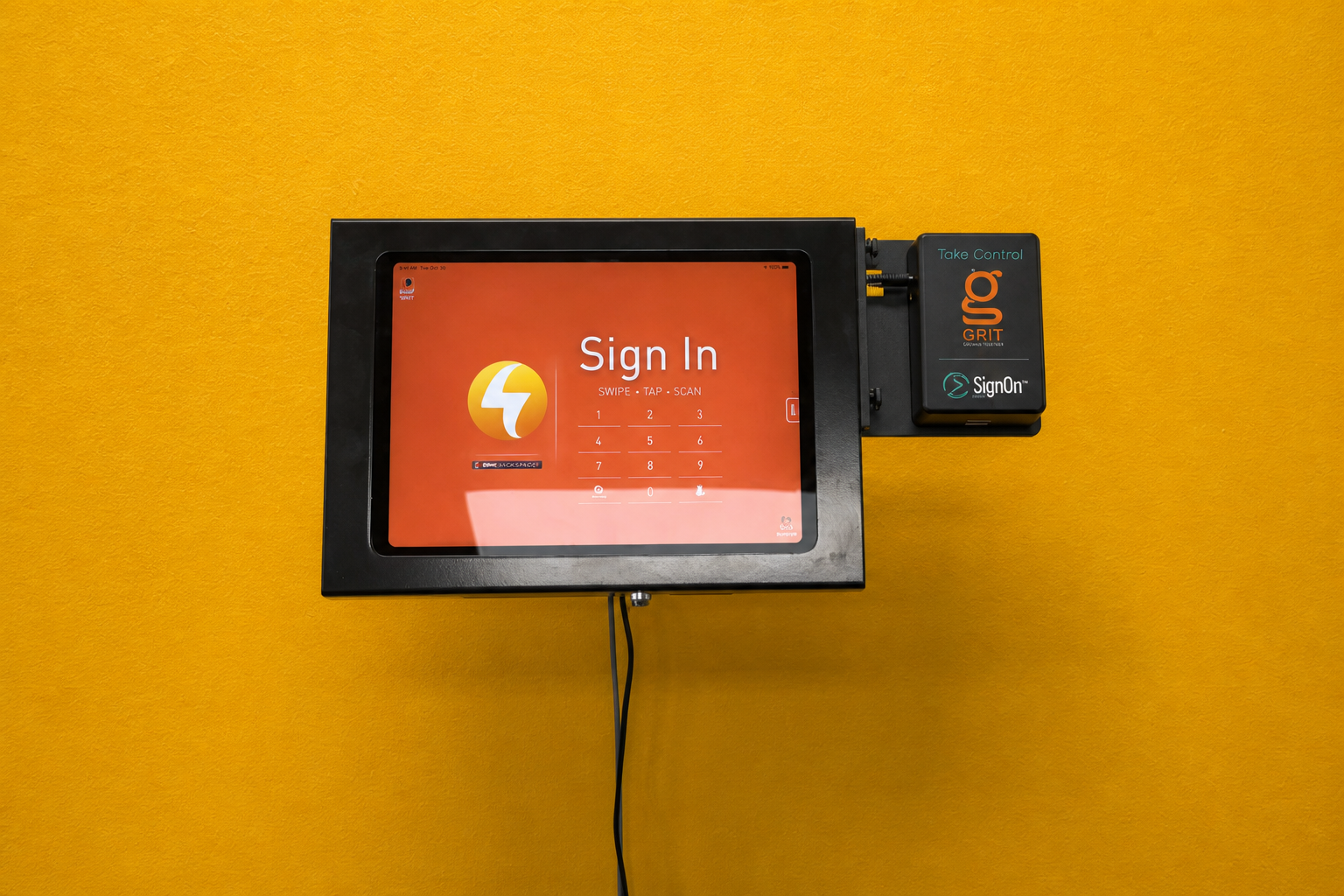
GRIT Track SignOn mounted on an orange wall
Schools and shared shops. Give students, staff, or members one visible place to identify themselves and complete the configured sign-on workflow.
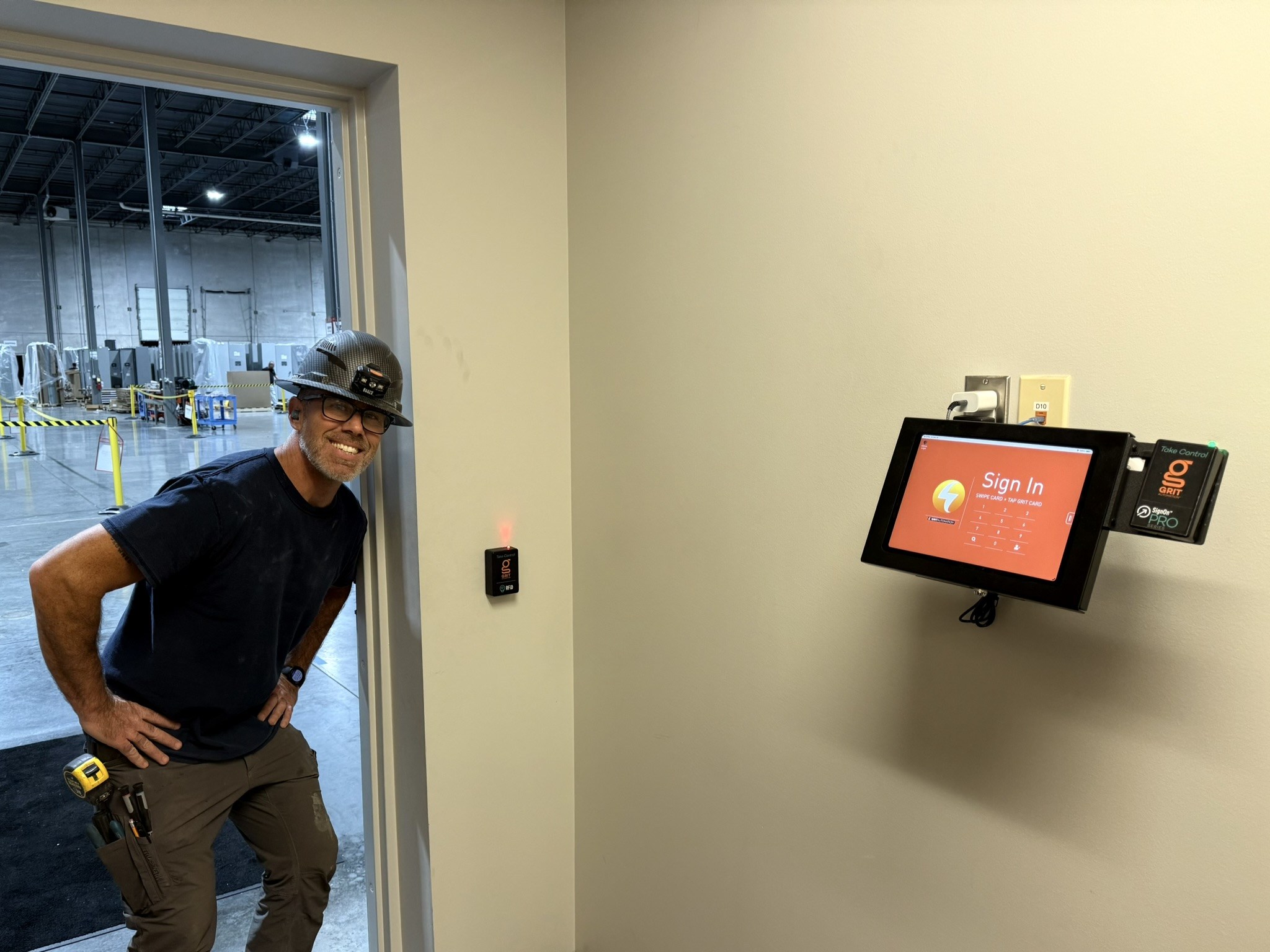
GRIT Track SignOn installed beside a manufacturing floor entrance
Manufacturing. Place SignOn at the entrance to the work area so users establish the configured session before entering the floor.

Implementation notes

Confirm the credential and reader before ordering.

Variants GA-GT2001 — GRIT Track SignOn; GA-GT2002 — GRIT Track SignOn 3rd Party Reader
Display 11-inch iPad Air
Required Hub GRIT Hub Pro
Connectivity GRIT Mesh to GRIT Hub Pro
SignOn power 5 V 3 A USB-C wall adapter
iPad power USB-C extension and wall adapter
Status RGB LED
Mounting Locking metal security case with wall/desk-mountable stand; separate desk stand included; mounting hardware not included
Reader compatibility SignOn needs a usable identifier from the selected card or reader. Confirm card and reader compatibility with GRIT before ordering.

GRIT Hub Pro is required for a GRIT Track RFiD system. SignOn and GRIT Asset Tracker are separate products.

Choose the credential path

Card technology and SignOn workflow are separate decisions.

Use the RFiD Options guide to compare frequencies, cards, mobile credentials, encryption, and external-reader integration.